How DNS Resolution works

What is DNS and Why Does Name Resolution Exist?
DNS stands for Domain Name System. It acts as the intermediate layer between humans and machines (computers/servers). Humans prefer using words in languages like English, such as google.com, twitter.com, or myawesomeblog.in. However, computers understand IP addresses (like 142.250.183.78) and ultimately operate in machine language (1s and 0s).
On the internet, communication is essentially between computers. When you type google.com in your browser, your system doesn't directly understand it. This is where DNS comes in. DNS translates human-readable domain names (like google.com) into machine-readable IP addresses so your computer can connect to the correct server.
A simple analogy is:
DNS = Phonebook of the Internet
It translates human-readable names → machine-readable IPs
How DNS Resolves an IP Address
The typical resolution path is:
Root → TLD → Authoritative → IP
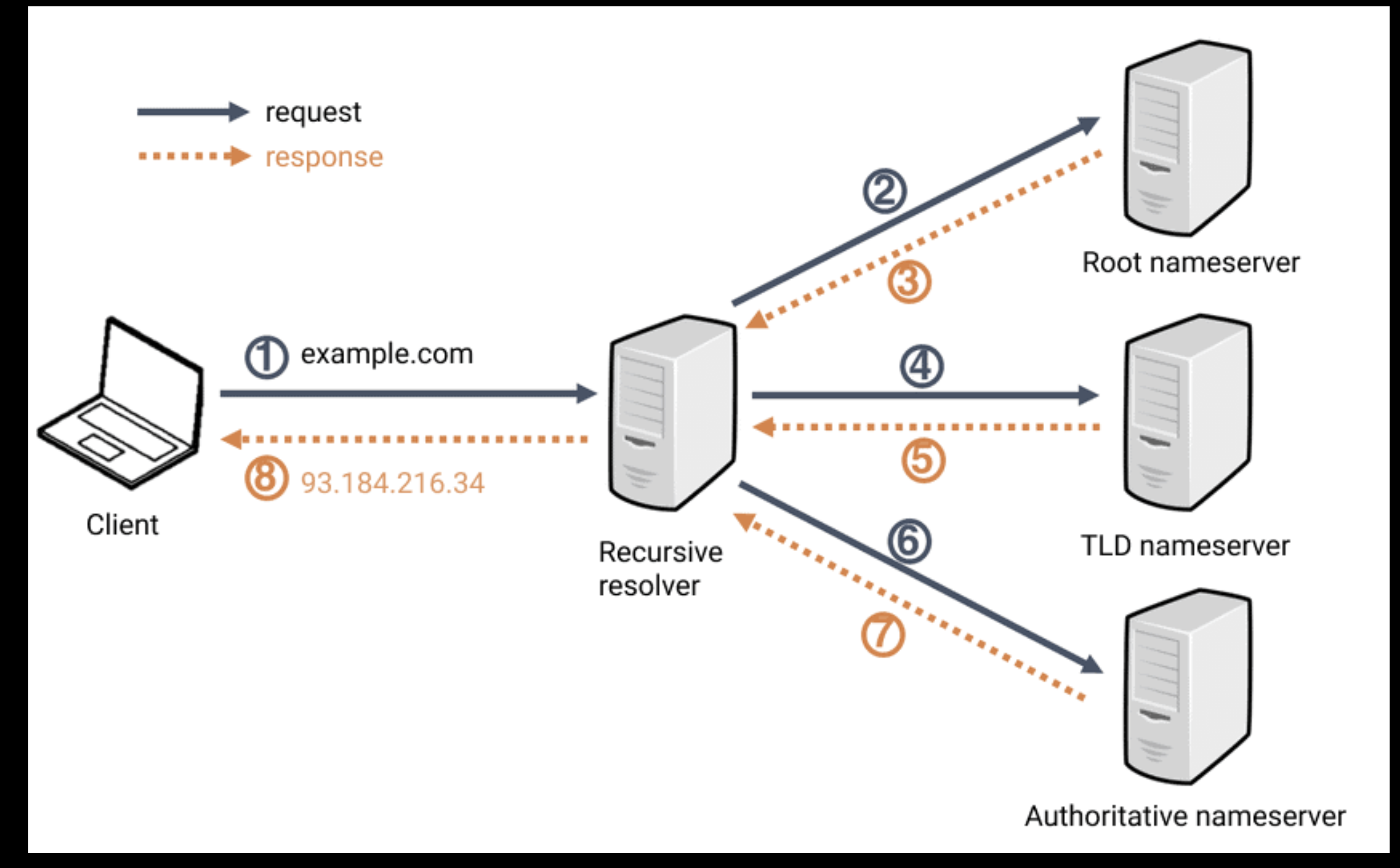
Before this process begins, your system and DNS resolver first check the cache:
If the IP is already cached (stored from a previous lookup), it’s returned immediately.
If not, the resolver starts from the beginning (root servers).
Simple Example
You type example.com in your browser:
The browser asks: “Do I already know the IP for
example.com?”If not, it asks the OS → the DNS resolver → which may ask root, then TLD, then authoritative servers.
Eventually, DNS returns something like
93.184.216.34.Your browser then connects to
93.184.216.34.
What is the dig Command and When is it Used?
In normal English, “dig” means to search for or uncover something. In DNS, the dig command helps you dig into DNS to see what’s going on. You use dig to:
Inspect DNS records
Diagnose DNS configuration issues
Debug when a domain doesn’t resolve correctly
See which servers are answering which questions
Common situations where dig is useful:
DNS is misconfigured
A domain doesn’t resolve
SSL / CDN issues
It works in production but not on your local machine
Example:
dig google.com
This command provides detailed DNS information, including:
The answer section (IP addresses and other records)
Which server replied
How long it took
Additional technical details
Understanding dig . NS and Root Name Servers
When you run:
dig . NS
You’re asking: “Who are the root DNS servers?”
What This Means
.= the root zone (similar to/in Linux representing the root directory)NS= Name Server records
What Root Servers Do
Root servers:
Do NOT know the IPs for specific websites
They only know where the TLD (Top-Level Domain) servers are
There are 13 logical root servers (a.root-servers.net … m.root-servers.net) distributed globally using many physical machines.
Note: Root servers don’t know the final answer (like the IP of google.com). They just know which direction to send you next (e.g., to .com TLD servers).
Understanding dig com NS and TLD Name Servers
When you run:
dig com NS
You’re asking: “Who manages .com domains?”
What TLD Servers Do
TLD (Top-Level Domain) servers:
Handle domains under a specific TLD:
.com,.org,.net,.in, etc.Know which authoritative name servers are responsible for each domain (like
google.com,facebook.com)They still do not know the final IP addresses for individual websites.
TLD servers say something like: “For google.com, ask these authoritative name servers.”
Understanding dig google.com NS and Authoritative Name Servers
When you run:
dig google.com NS
You’re asking: “Who is authoritative for google.com?”
Authoritative Servers
Authoritative name servers:
Are usually owned or controlled by the domain owner (or their DNS provider)
Store the actual DNS records for the domain
Provide the final, correct answers for that domain
Examples of records they store:
Arecords → IPv4 addressesAAAArecords → IPv6 addressesMXrecords → Mail serversTXTrecords → Text data (verification, SPF, etc.)
Understanding dig google.com and the Full DNS Resolution Flow
If you simply run:
dig google.com
You’re asking for the actual DNS records (like IP addresses) for google.com. This is where the “truth” lives for that query: the final IP, like 142.250.x.x.
Step-by-Step
Browser asks OS:
Do we know google.com?OS cache checked
If not found →Recursive Resolver (ISP / Public DNS like 8.8.8.8)
Resolver asks Root Server:
Where is .com?Root replies:
Ask these .com TLD serversResolver asks .com TLD server:
Where is google.com?TLD replies:
Ask these authoritative serversResolver asks Authoritative Server:
What is the IP of google.com?Authoritative replies:
142.250.x.xResolver caches it and returns IP to browser
Browser connects to the server


