Understanding HTML Tags and Elements

A Beginner-Friendly Guide
When you build a website, everything you see on the screen starts with HTML.
Before learning CSS or JavaScript, it is important to clearly understand HTML tags and elements.
This article explains HTML from the ground up, in a simple and practical way.
1️⃣ What Is HTML and Why Do We Use It?
HTML stands for HyperText Markup Language.
HTML is used to:
Structure a web page
Tell the browser what content exists
Define headings, paragraphs, images, links, forms, etc.
HTML is not for styling or logic.
HTML only describes structure and meaning.
Without HTML:
Browsers would not know what text is a heading
Images would not appear
Links would not work
2️⃣ What Is an HTML Tag?
An HTML tag is a keyword written inside angle brackets:
<p>
Tags tell the browser:
What type of content this is
How it should be treated
Examples of tags:
<h1> <p> <img> <a>
A tag by itself does nothing until it is used correctly.
3️⃣ Opening Tag, Closing Tag, and Content
Most HTML tags come in pairs.
Example:
<p>Hello World</p>
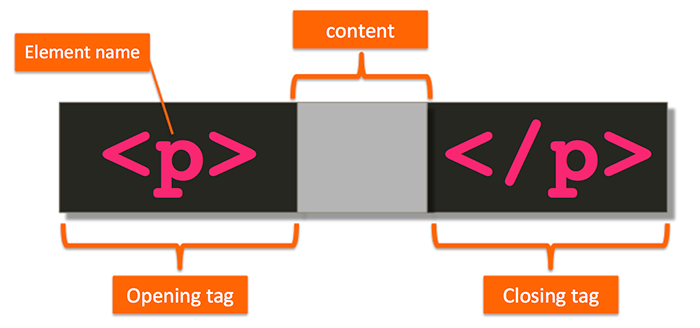
This has three parts:
Opening tag →
<p>Content →
Hello WorldClosing tag →
</p>
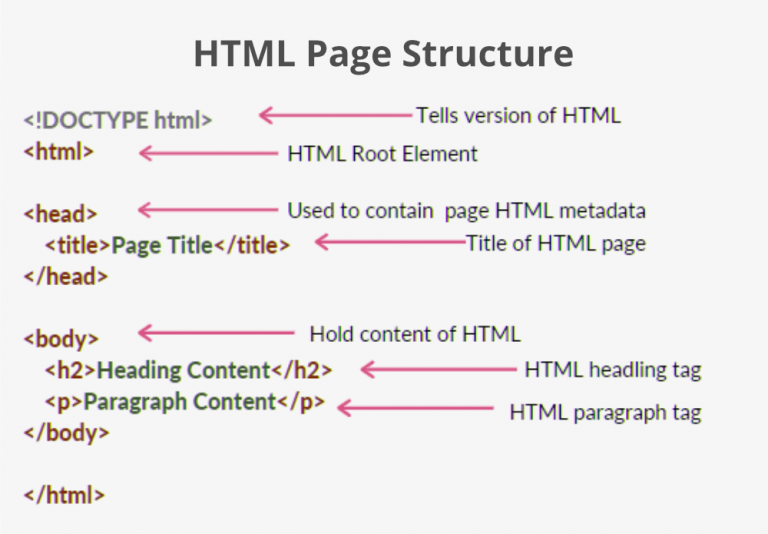
The browser reads this as:
“This text is a paragraph.”
4️⃣ What Is an HTML Element?
This is a very important distinction.
An HTML element = opening tag + content + closing tag
Example:
<p>Hello World</p>
<p>→ tag<p>Hello World</p>→ element


Simple Rule
Tag → part of syntax
Element → complete structure
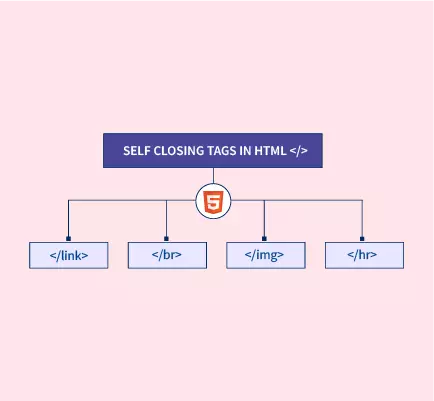
5️⃣ Self-Closing (Void) Elements
Some elements do not have content.
They only have:
One tag
No closing tag
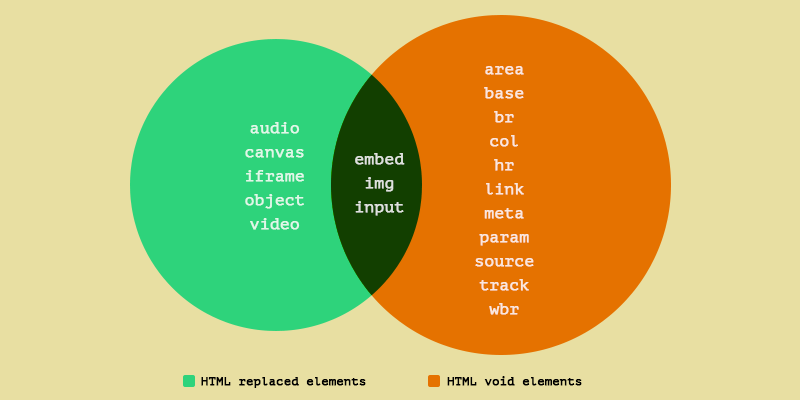
These are called void elements.
Examples:
<img src="image.jpg">
<br>
<hr>
<input>
Why?
An image does not wrap text
A line break has no content
6️⃣ Block-Level vs Inline Elements
HTML elements behave differently on the page.
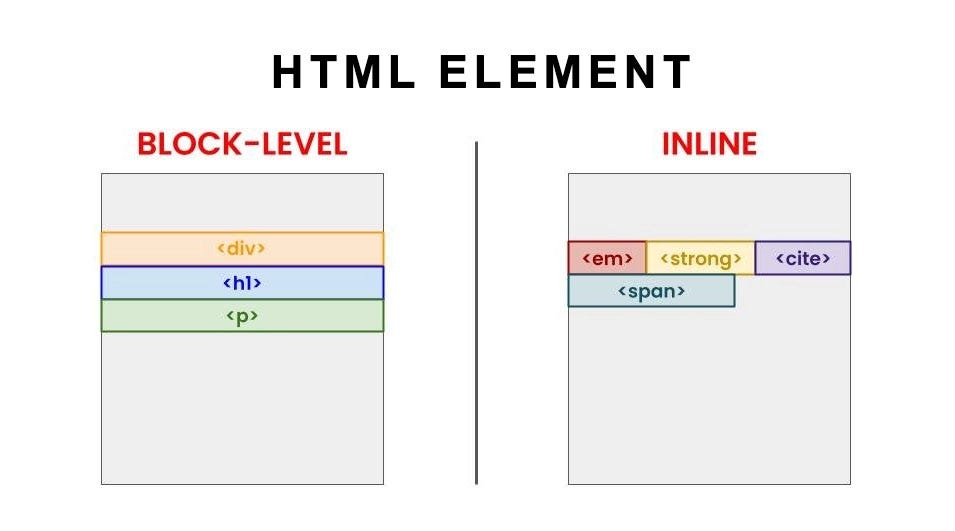
Block-Level Elements
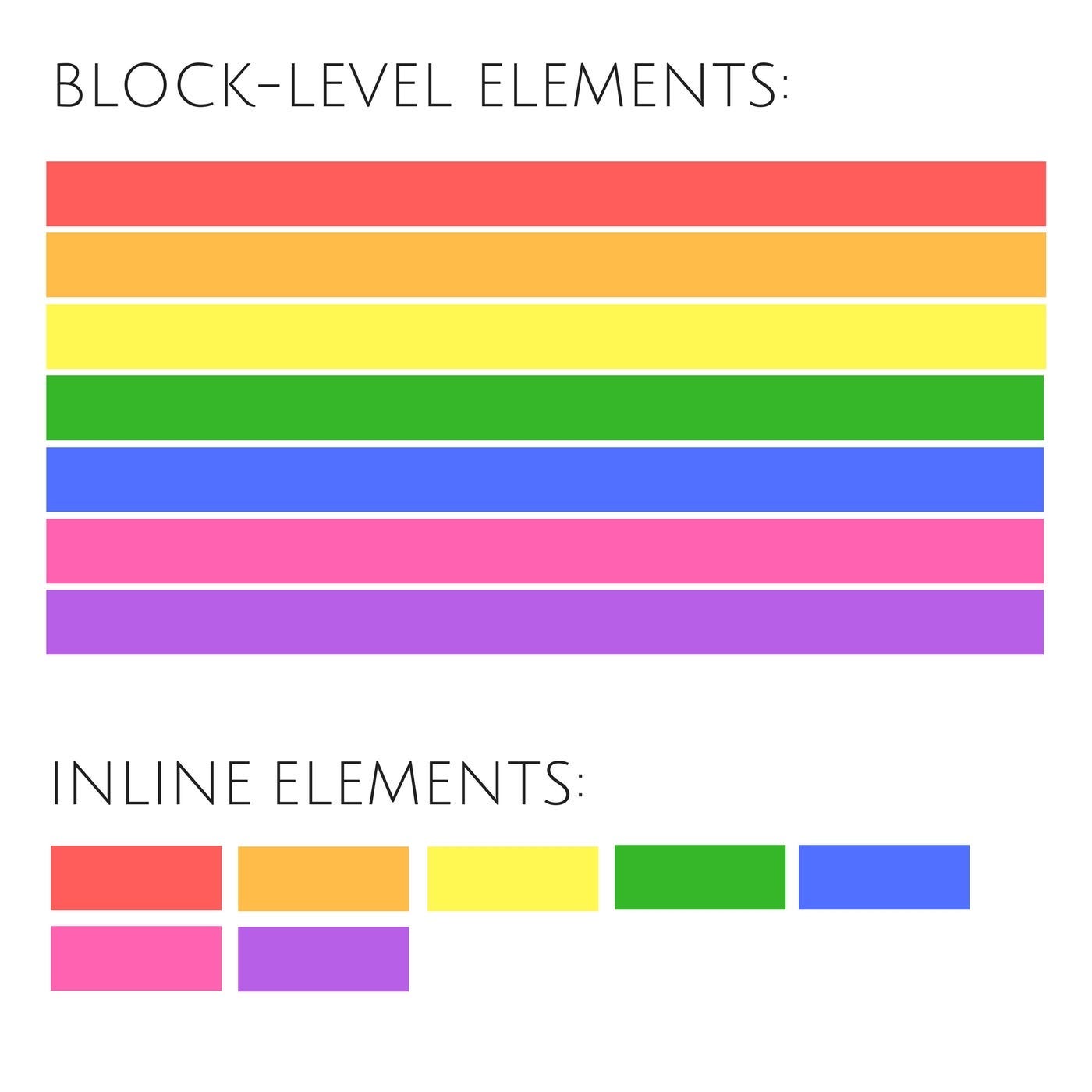
Block elements:
Start on a new line
Take full width by default
Examples:
<div>
<p>
<h1>
<section>
Used for:
Page structure
Layout sections
Grouping content
Inline Elements
Inline elements:
Stay in the same line
Take only required width
Examples:
<span>
<a>
<strong>
<em>
Used for:
Styling text
Links
Small pieces inside blocks
Quick Comparison
| Feature | Block | Inline |
| New line | Yes | No |
| Full width | Yes | No |
| Used for | Structure | Text-level content |
7️⃣ Commonly Used HTML Tags
Here are the most common tags you will use as a beginner:
Structure
<html>
<head>
<body>
Text
<h1> to <h6>
<p>
<span>
Links & Media
<a>
<img>
Lists
<ul>
<ol>
<li>
Forms
<input>
<button>
<form>
These tags form the foundation of every website.
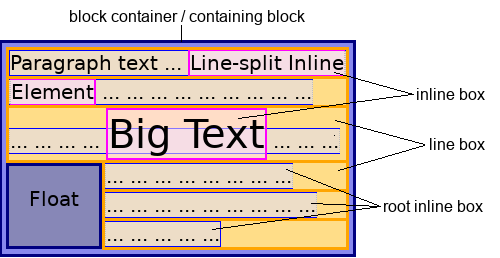
8️⃣ Block vs Inline: Simple Visual Flow

This diagram helps you understand:
Why elements stack
Why some stay side-by-side


